Slack Messages
Slack integration enables documentation updates directly from your team conversations. This is particularly useful for support conversations or internal discussions where questions arise that could be better addressed in your documentation.
Trigger Methods
Use a Message Action
Use the Promptless message shortcut on any Slack message to trigger documentation analysis. This method allows you to trigger updates without interrupting the conversation flow.
Mention @Promptless in a Channel
Tag @Promptless in a channel with specific instructions or questions. Promptless will analyze the full thread context to create relevant documentation updates.
Send a Direct Message
Send documentation requests directly to @Promptless in a DM. This is useful for private documentation requests with comprehensive context support.
How It Works
When triggered in Slack:
- Thread Analysis: Promptless reads the entire thread where it was triggered
- Context Gathering: The system analyzes text, images, and file attachments in the thread
- Documentation Suggestions: Promptless creates suggestions based on the conversation content
- Follow-up Editing: Continue editing suggestions within the same thread using @Promptless mentions
Image and File Processing
Promptless can process images and file attachments shared in Slack threads when triggered, enhancing documentation with visual elements and additional context when appropriate.
How It Works
-
When you tag @Promptless or use the “Update docs” message action in a thread containing images or file attachments, Promptless will analyze both the text and attached files in the thread.
-
Promptless evaluates whether the images or file content provide valuable context that should be included in the documentation.
-
If an image or file is deemed relevant, Promptless will:
- Upload the image to a secure S3 bucket
- Extract and incorporate relevant content from file attachments (including images from PDFs)
- Include the image in the documentation updates it suggests
- Format the image appropriately for the documentation platform
-
When reviewing the suggestion in the Promptless app, you’ll see the added images at the bottom of the review interface, allowing you to approve or reject their inclusion.
Passive Channel Listening (Optional)
You can optionally enable passive listening for specific channels. When enabled, Promptless will automatically monitor conversations in your selected channels and create documentation suggestions when threads become inactive.
To enable passive listening:
- Edit your Slack trigger project
- Check the box for “Listen for all messages in specific channels”
- Select which channels to monitor
- Save your configuration
Passive listening is completely opt-in and only applies to channels you explicitly select. Promptless cannot access private channels unless it has been specifically invited to those channels.
Configuration
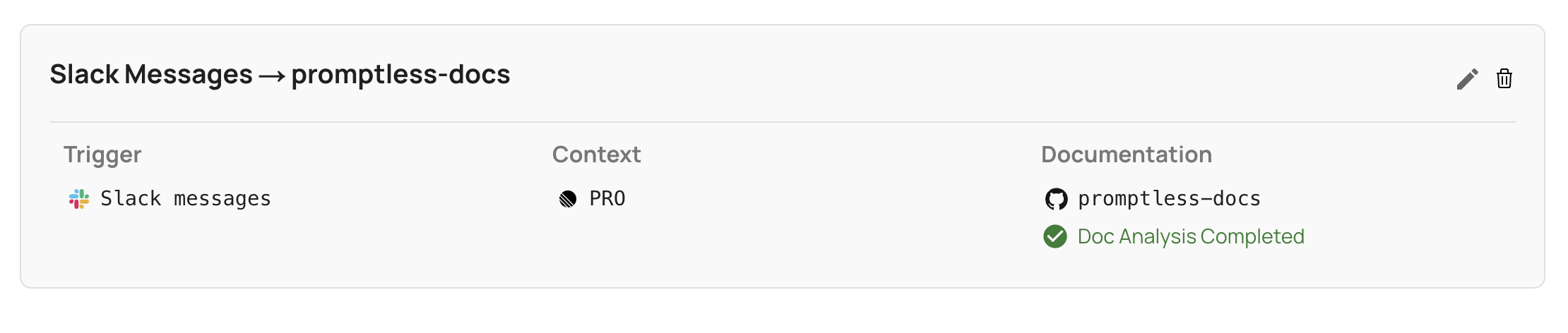
Configure Slack triggers in your project settings:
- Select Slack as your trigger source
- Optionally configure passive listening for specific channels
- Set auto-publish preferences
- Configure notification channels
Privacy and Channel Access
By default, Promptless only reads Slack content when you explicitly trigger it by tagging @Promptless or using the “Update Docs” message action. If you enable passive listening, Promptless will monitor only the specific channels you select in your project configuration.
Setup Instructions
To connect Slack to Promptless, see the Slack Integration setup guide.