Providing Feedback
Provide feedback on suggestions through request changes, inline comments, overall comments, or close feedback. Each method lets you request immediate changes or save preferences for future suggestions.
1. Request Changes
Use the Request Changes button at the top of any suggestion to request updates. Provide multiple pieces of feedback at once, and Promptless will address them all together.
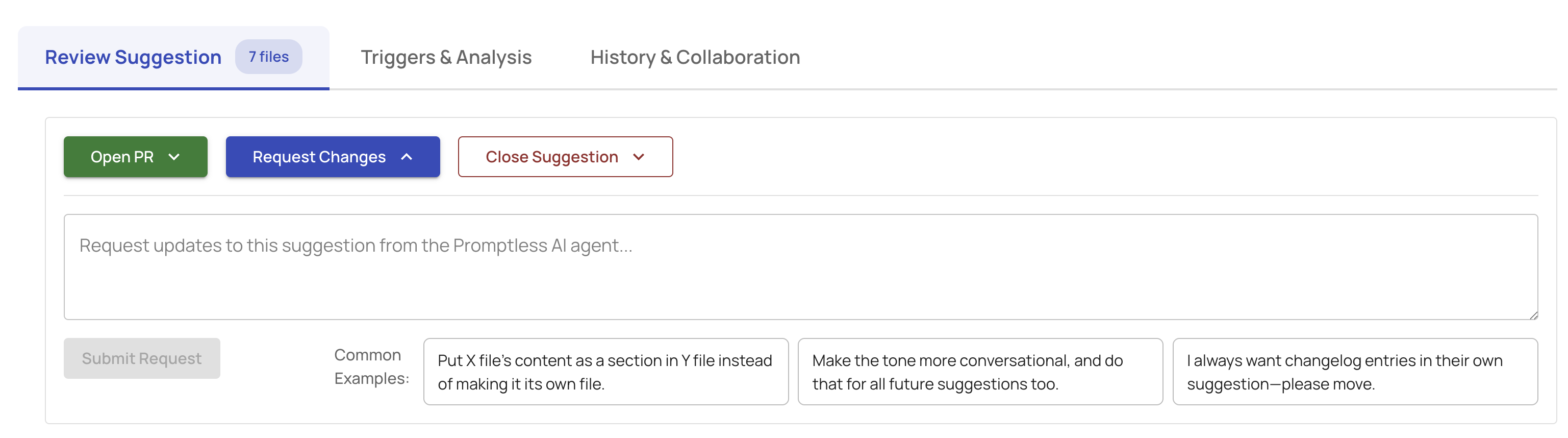
The interface includes common examples to get you started:
- “Put X file’s content as a section in Y file instead of making it its own file”
- “Make the tone more conversational, and do that for all future suggestions too”
- “I always want changelog entries in their own suggestion—please move”
Click Submit Request to process all your feedback.
2. Inline Comments
Add comments to specific files or sections within a suggestion for targeted feedback. Click Edit or Add Comment on any file to provide context-specific input.
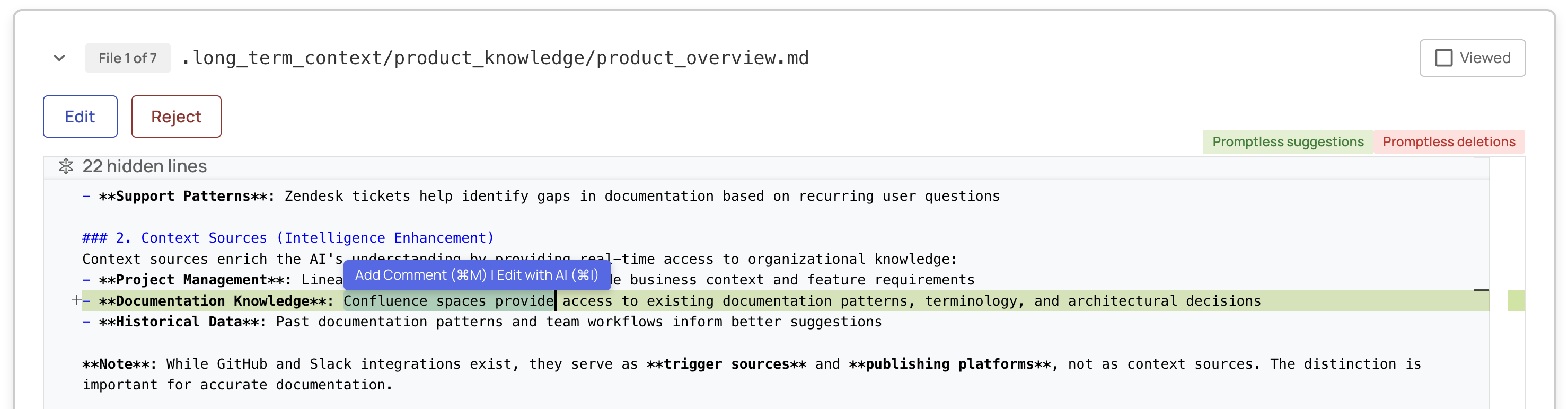
When you add an inline comment, you’ll see a feedback panel with two options:
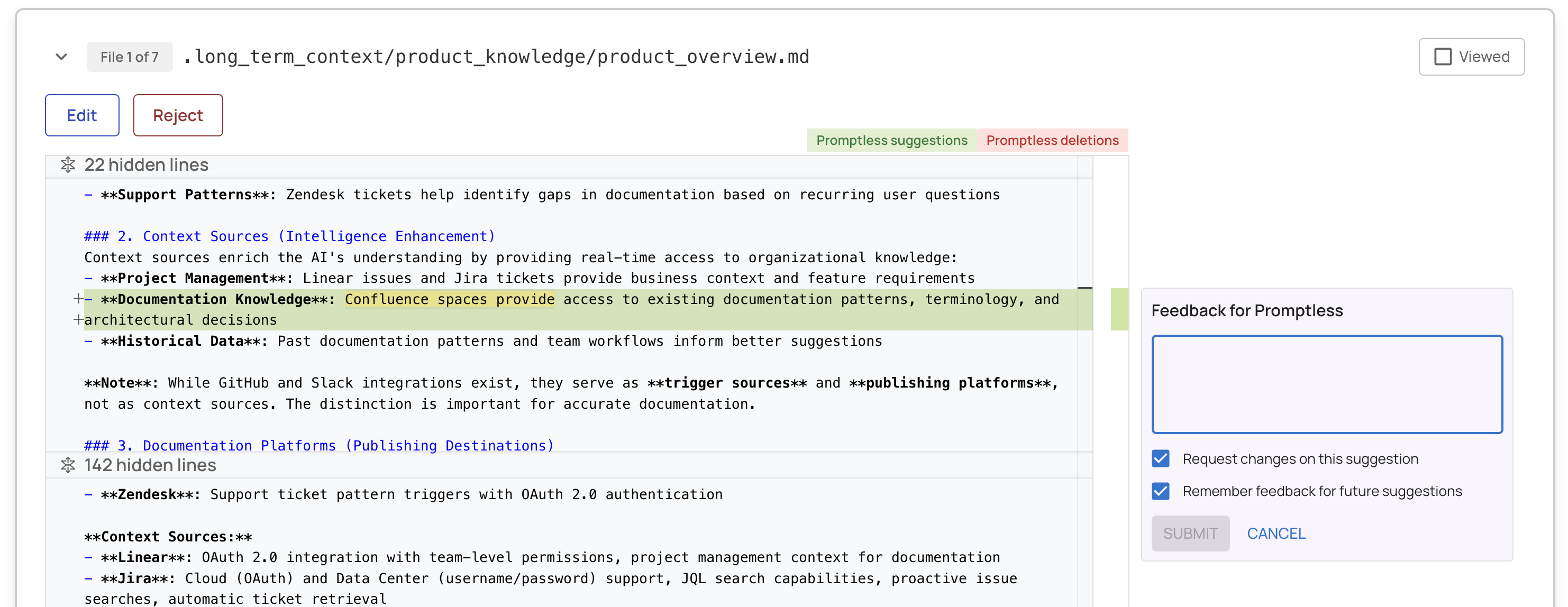
Request changes on this suggestion: Promptless will apply your feedback to the current suggestion. You can add multiple comments and submit them all at once.
Remember feedback for future suggestions: Promptless saves your preferences and applies them to future documentation. This helps it learn your style and standards over time.
Examples of feedback to remember:
- “Always include code examples for API endpoints”
- “Use active voice instead of passive voice”
- “Include troubleshooting sections for configuration guides”
3. Overall Comments
Leave general feedback about a suggestion without targeting a specific file. This is useful for high-level guidance or when your feedback applies to the entire suggestion.
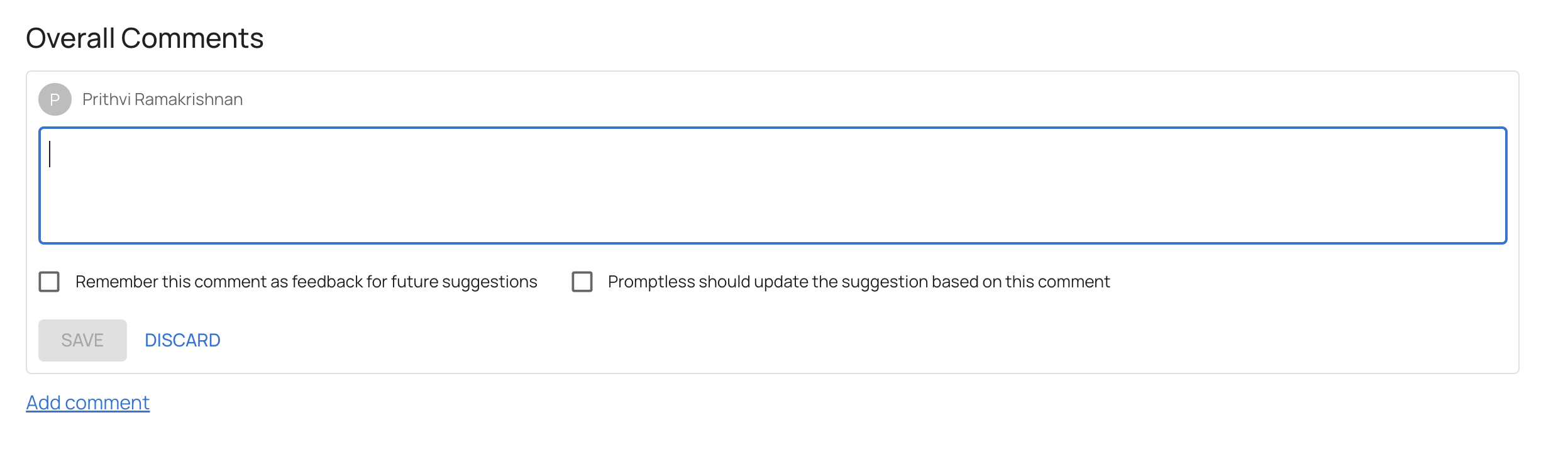
Like inline comments, you can choose whether to request immediate changes or remember the feedback for future suggestions.
4. Close Suggestion Feedback
When closing a suggestion, provide feedback about why you’re rejecting it. This helps Promptless improve future suggestions.

Select one or more reasons:
- “I copied this change into my docs editor”
- “This change is incorrect”
- “This change is too insignificant”
- “This change was covered in another Promptless suggestion”
- “This is already in my docs”
- “This change is self-explanatory and doesn’t need docs”
You can also provide additional context in the feedback field. Check “Remember this feedback for future suggestions” to save your preferences.
5. GitHub PR Comments
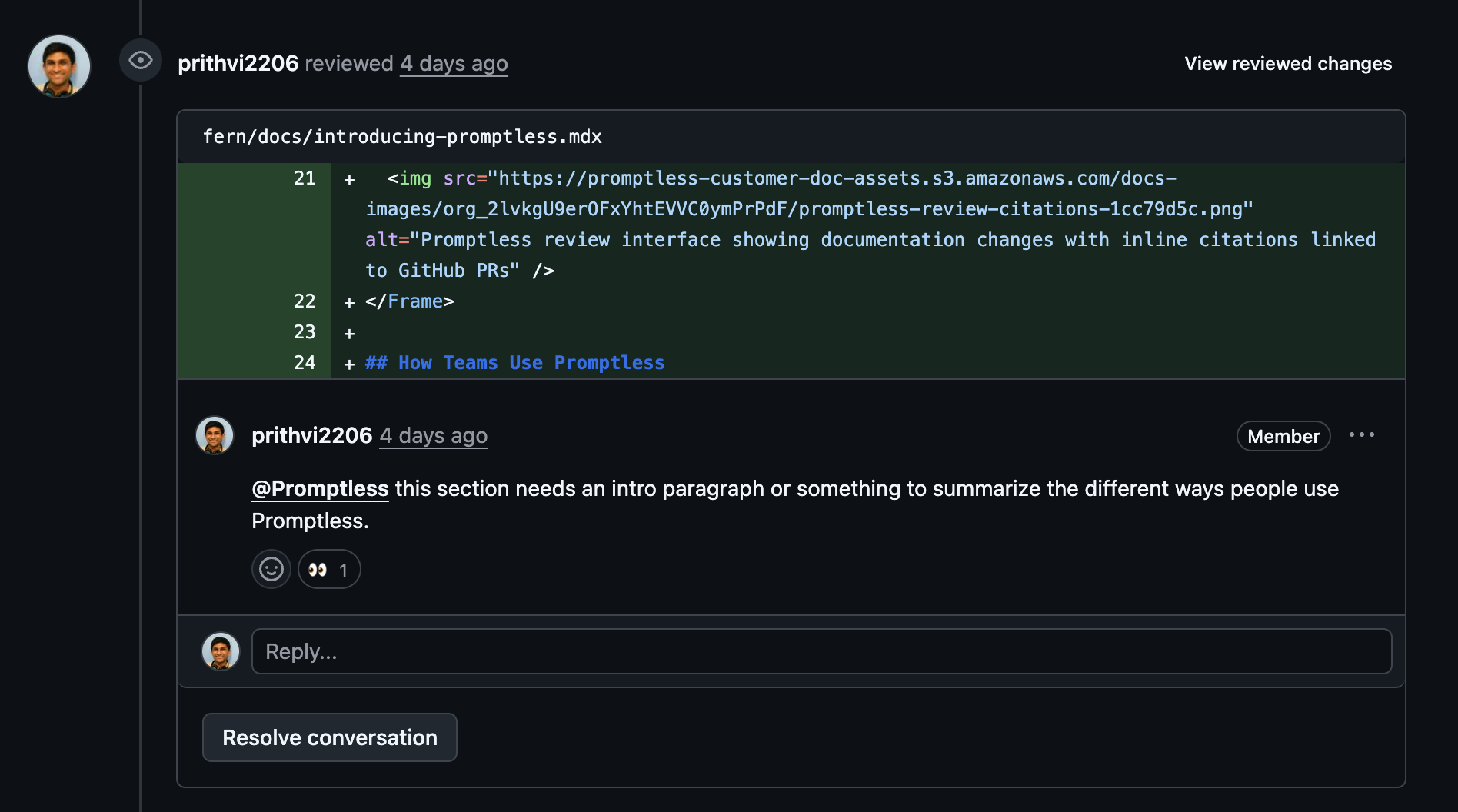
Leave comments directly in the GitHub PR interface to provide feedback. Tag @Promptless in any line comment to request changes.
Promptless reads all previous comments in the thread to understand context, so you can give brief instructions like “same change here” or “apply this to the other sections too.”
Need help? Contact us at help@gopromptless.ai.